
Table of Contents
Introduction
This guide provides comprehensive, step-by-step instructions for adding an integrated app for Outlook using the Microsoft 365 Admin Center. It includes the use of an Azure Storage link for the manifest file and instructions for distributing the application to specific users or to your entire organization.
Prerequisite
Important: The individual performing the deployment must have Exchange Admin privileges.
Glossary of Terms
-
Manifest File: An XML file describing the app’s settings, permissions, and configuration, which enables the Outlook integration.
-
Azure Storage Link: A direct URL to a file stored in Microsoft Azure Storage, used here to provide access to the manifest file.
Step 1: Access the Microsoft 365 Admin Center
-
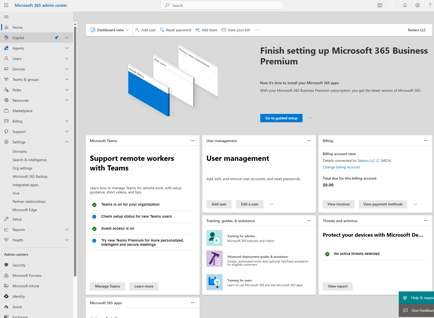
Log in to the Microsoft 365 Admin Center using your administrator credentials.
-
In the left-hand navigation pane, click Show all to expand the full menu.
-
Navigate to Settings > Integrated apps.
Step 2: Upload the Custom Application
-
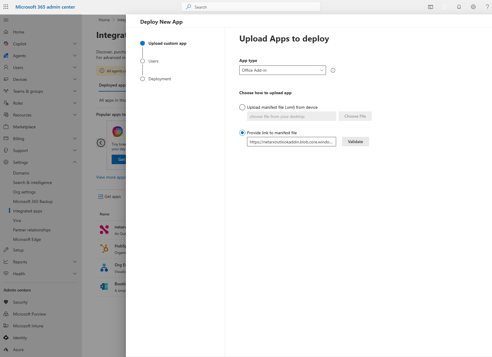
On the Integrated apps page, select the Add-ins link in the upper right section.
-
Click Deploy Add-in.
-
Click Upload custom apps.
-
In the App type dropdown menu, select Office Add-In.
-
Choose Provide a link to manifest file.
-
Paste the following complete URL into the designated field:https://netarxoutlookaddin.blob.core.windows.net/outlookaddin/manifest.xmlTip: Make sure to copy and paste the entire URL without modification.
-
Click Validate to check that the manifest file is correct.
-
After a successful validation, click Next.
Sample Screenshot: Screenshot displaying the "Upload custom apps" dialog with the manifest file URL entered.
Step 3: Review and Confirm Application Details
-
Examine the app details auto-populated from the manifest file, including application name, version, and publisher.
-
Ensure all information is correct.
-
Click Next.
 Step 4: Assign User Access
-
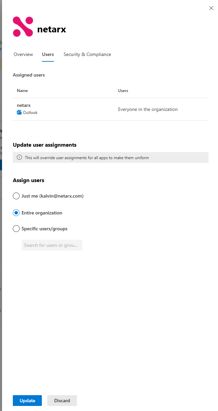
Select how you want to distribute the app:
-
Everyone: Distributes the app to all users within your organization.
-
Specific Users/Groups: Distributes the app only to selected users or groups.
-
Set the deployment method (available below these options) to Fixed.
-
Click Add to confirm your selection of users or groups (only applies if you selected "Specific Users/Groups").
-
Click Next to continue.
Step 5: Complete the Deployment
-
Review the summary of the configured deployment settings.
-
If all details are accurate, click Finish deployment.
Note: It can take a minimum of 24 hours for newly deployed apps or changes to propagate across your organization.
The application will now be available to the selected users within their Outlook applications.
Troubleshooting
Here are common issues encountered during deployment and recommended solutions:
|
Issue |
Solution |
|
Validation fails for the manifest file |
Ensure the URL is entered correctly and the manifest file is accessible from the Azure Storage link. |
|
App is not visible after 24 hours |
Confirm user assignments are correct and allow additional time for propagation. |
|
Insufficient permissions to deploy app |
Verify that your account has Exchange Admin privileges. |
|
Users unable to see the app in Outlook |
Instruct users to restart Outlook and check the "Manage Add-ins" section. |
Summary and Next Steps
You have successfully deployed an integrated app for Outlook using the Microsoft 365 Admin Center. The app is now distributed according to your chosen settings and will appear automatically in targeted users’ Outlook environments.
For ongoing support or further queries, contact your IT administrator or support desk. Regularly review user feedback and stay updated with Microsoft 365 documentation for new admin features and best practices.