
Welcome to Netarx!
Congratulations on installing the Netarx Flurp! With the Flurp on your device, you’re now equipped with advanced protection against complex AI-driven cybersecurity threats in meetings and emails. Let’s walk you through how to use the Flurp effectively.
What is the Flurp?
 The Flurp is a lightweight app that appears on your screen after installation. It’s your personal cybersecurity assistant, designed to analyze and protect your meetings, emails, and uploaded files. The Flurp has three main tabs: Meetings, Emails, and Manual Scan. Here’s how each tab works:
1. Meetings Tab
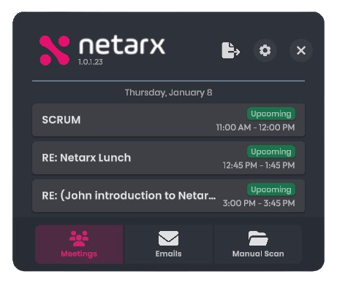
The Meetings tab displays a list of all your scheduled meetings for the day, synced directly with your Microsoft calendar. Here’s what you can do:
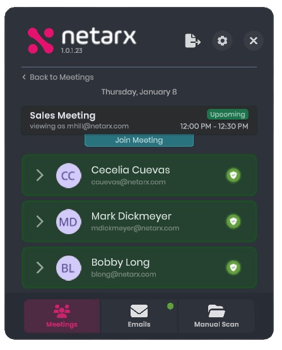
- View Meeting Details: Click on a meeting to see the list of invited guests. Each guest is assigned a color—green, amber, or red—based on various factors like communication frequency, email metadata, and location.
- Deepfake Detection: When you join a meeting, the [INSERT COMPANY NAME] Deepfake Detection Agent will automatically join as well. This agent analyzes the meeting in real-time to detect any fraudulent participants.
- Alerts: If an impersonator is detected, the Flurp will turn red and highlight the suspicious participant’s name. The [INSERT COMPANY NAME] Deepfake Detection Agent will also appear in red within the Flurp.
2. Emails Tab
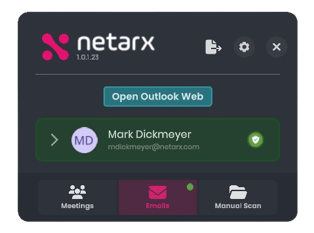
The Emails tab provides real-time analysis of your email communications. To use this feature:
- Open a supported email platform (Outlook Classic, PWA, OWA, or Gmail).
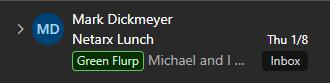
- Click on an email to view the sender’s analysis in the Flurp. The sender will be assigned a color—green, amber, or red—based on our cybersecurity findings.
- A color-coded tag will also be applied to the email for easy identification.
3. Manual Scan Tab
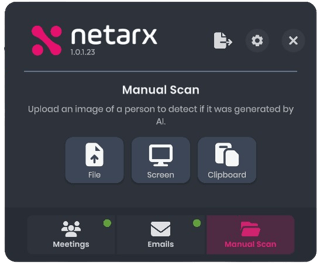
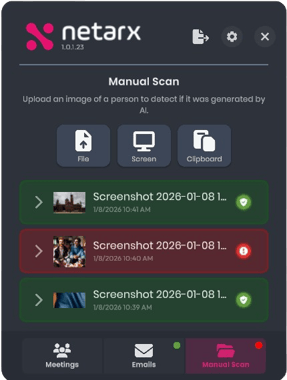
The Manual Scan tab allows you to upload and analyze images that you suspect may have been altered by AI. Here’s how to use it:
- Upload Options:
-
- File: Upload a saved file from your device.
-
- Screen: Use the native screenshot tool to capture and upload an image.
-
- Clipboard: Paste an image directly from your clipboard.
- Analysis: Once uploaded, the Flurp will analyze the image within 10–30 seconds and assign it a color—green, amber, or red—based on its findings.
Need Help?
If you have any questions or need assistance, please create a ticket in the Help Desk or contact your account manager.