
Efficiently deploying the Netarx Flurp across an organization is essential for maintaining robust protection and operational consistency. This guide details the process for deploying the Flurp agent using Remote Monitoring and Management (RMM) tools—specifically through Microsoft Intune—after setting up your organization in the Netarx portal.
Table of Contents
- Introduction
- Step 1: Setting Up a Managed Organization
- Step 2: Deploying via RMM (Microsoft Intune)
- Step 3: User Documentation and Post-Deployment
- Troubleshooting Tips
- Deployment Checklist
Introduction
This guide provides a systematic approach for administrators to deploy the Netarx Flurp agent at scale using Microsoft Intune. By following these instructions, administrators can ensure all endpoints are properly configured, users are guided through onboarding, and common issues are addressed proactively.
Step 1: Setting Up a Managed Organization
- Log in to the Netarx admin portal.
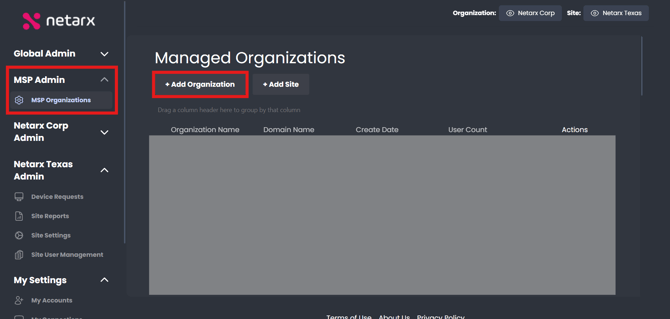
- Navigate to MSP Admin (left-hand menu).
- Select Managed Organizations.
- Click Add Organization.
- Enter the required information for the organization you wish to deploy.
- Confirm that the organization appears in your managed organizations list.
Tip: Complete all organization information to avoid delays during deployment.
Step 2: Deploying via RMM (Microsoft Intune)
A. Download the Deployment Script
- In the admin portal, go to the Organization Admin tab.
- Open the Resources page.
- Download the Bulk Flurp Install Script for your organization.
B. Configure the Script in Microsoft Intune
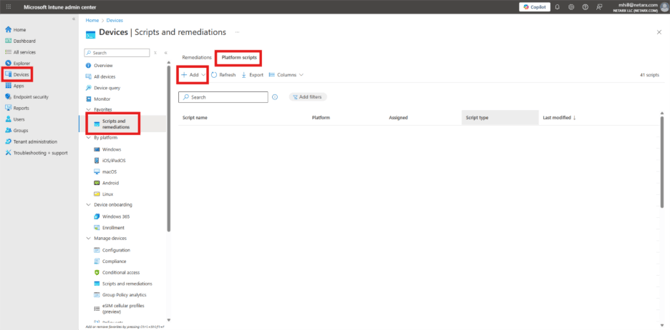
- Visit Microsoft Intune Admin Center.
- Navigate to Devices → Scripts and Remediations → Platform Scripts.
- Click Add.
- Select Windows 10 and later as the platform.
- Name your script deployment and provide a description.
- Upload the script you downloaded in the previous step.
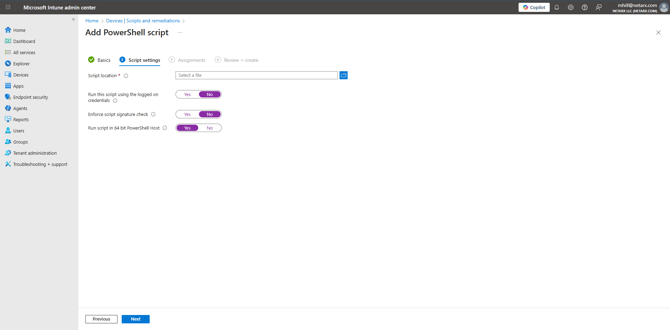
- Set configuration options as follows:
- Run script as the logged-in user: No
- Enforce signature check: No
- Run script in 64-bit PowerShell host: Yes
- Assign the script to the appropriate user or device groups.
- Review your settings and deploy the script.
Important: Allow sufficient time for the selected computers to sync with Intune and execute the script.
Step 3: User Documentation and Post-Deployment
After deployment, a desktop shortcut to the Flurp application will appear on user devices.
- Direct users to the appropriate usage guide for step-by-step onboarding:
- Netarx Flurp User Guide
- The guide will help users:
- Verify their email.
- Add their Microsoft or Google OAuth token.
- Begin using the Flurp securely.
Note: Ensure users receive the onboarding guide immediately after deployment to streamline the setup process.
Troubleshooting Tips
- Issue: Script fails to deploy or does not appear on devices.
- Resolution: Confirm devices are online and assigned to the target group, and verify PowerShell execution policies.
- Issue: Users do not see the Flurp desktop shortcut.
- Resolution: Ensure the script ran successfully and check for any antivirus or permission conflicts.
- Issue: Problems with OAuth token addition.
- Resolution: Direct users to sign in with supported accounts and verify admin consent if required.
Tip: Refer to the Netarx Troubleshooting Guide for detailed solutions to common issues.
Deployment Checklist
- Organization added in the Netarx portal
- Bulk Flurp Install Script downloaded
- Script uploaded and configured in Intune
- Correct user or device groups assigned
- Users provided with the usage and onboarding guide
- Troubleshooting resources communicated to IT support staff
By following these steps, you will ensure a seamless and efficient deployment of the Netarx Flurp agent across your organization, supporting a safer and more resilient operating environment.